How to Create Custom File Automation Tasks on iPhone and iPad
Managing files on iPhone and iPad often involves repetitive tasks such as renaming, copying, or moving groups of files based on specific criteria. Doing this manually becomes inefficient when you need to target only certain files within a large folder.
FileBrowserGO’s Custom Tasks solve this by introducing workflow automation for iOS files. Instead of processing every file manually, you can define filter criteria—such as file type, name, date, or size—to select only the relevant files, and then apply automated actions to that filtered set.
This allows you to build reusable workflows that run complex file operations in a single step.
How Can Custom Tasks Speed Up File Processing on iPhone and iPad?
Custom Tasks speed up file processing by reducing manual selection and repetitive actions. Instead of handling files one by one, you define filter criteria that automatically narrow down exactly which files should be processed.
Once the relevant files are selected, the task applies a sequence of actions—such as renaming, copying, or moving them—in a single operation. This removes the need to repeatedly search, select, and modify files manually, especially when working with large or frequently updated folders.

Choose a folder on your iPad, Computer or Cloud storage.

Filter the number of files returned to just the subset of files you want, using names, dates, sizes or types.
You can add multiple filters for example: A Document, containing the word "Invoice" in the filename, older than 2019 but larger than 2MB.
Perform actions on those files, copy, delete, rename them in bulk using a custom naming format.
You can add multiple copy or move steps.Search and replace text in filenames, add text or dates to filenames.

Run your task manually or set it to automated.

And thats just the beginning...
Simple Custom Task Examples
Custom Tasks in FileBrowserGO can be as simple or as advanced as you need, depending on the level of file automation required. Below are some straightforward examples that show how you can use workflow automation to process files efficiently on iPhone and iPad.
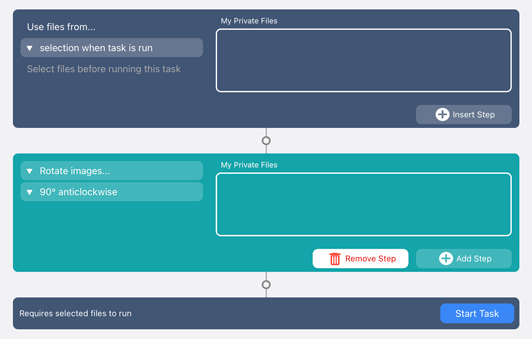
Rotate Images in Bulk
You can automate image rotation using a Custom Task that applies a single action to multiple files at once. This allows you to rotate selected images either clockwise or anti-clockwise in one step, instead of editing each file individually.
The task can be configured to run on all images within a folder or only on a manually selected set of files, making it flexible for different workflow automation needs.
Convert Images in Bulk
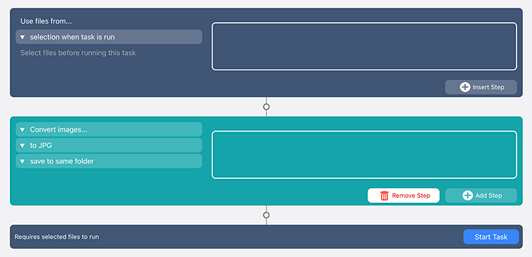
You can automate image conversion using a Custom Task that processes multiple files at once, converting them to formats such as JPG, PNG, HEIC, or TIFF. This removes the need to convert each image individually.
The task can be run on all images in a folder or limited to a selected set of files, depending on your workflow. You can also choose whether to save the converted images in the same location or export them to a different folder.
Create PDF
You can automate document creation by combining multiple PDF files and images into a single PDF. This allows you to quickly merge selected content into one structured file without manual editing or external tools.
Create Image Contact Sheets
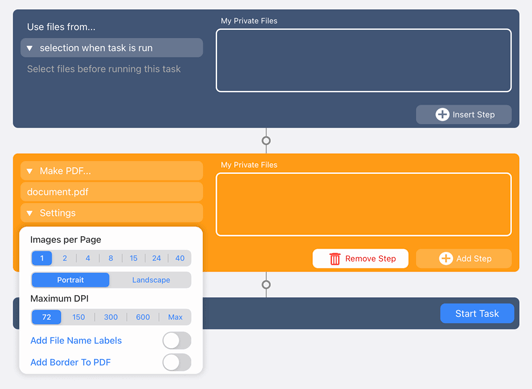
You can generate image contact sheets by automatically arranging multiple images into a single PDF layout. Images can be pulled from a folder and its subfolders and placed into a structured grid format.
You can configure the layout by setting the number of images per page, choosing portrait or landscape orientation, adjusting DPI, and optionally adding filenames or borders to each image.
Trim PDF Pages
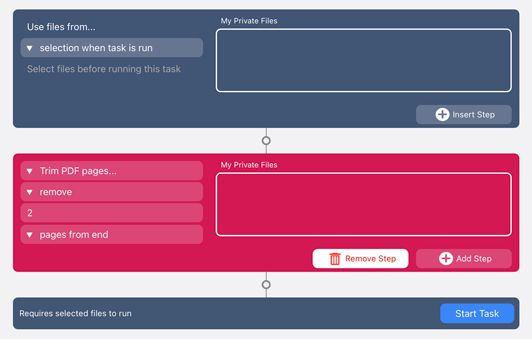
You can trim PDF pages in bulk by removing pages from the start or end of one or more PDF files. This lets you quickly clean up multiple documents without opening them individually.
The same task can also be applied to entire folders and subfolders, making it suitable for processing large batches of PDFs in one automated workflow.
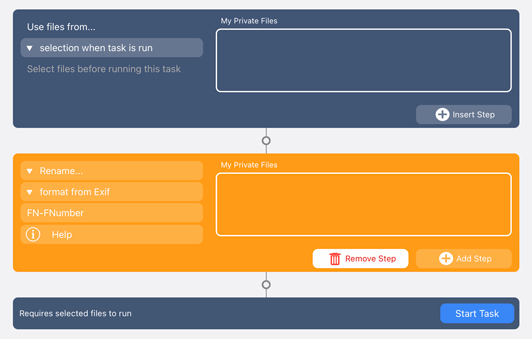
Rename Images Using EXIF Data
You can automatically rename images using EXIF metadata such as GPS location, camera make, or camera model. This allows filenames to be generated based on information already embedded in the image.
The task can be applied to all images in a folder or limited to selected files, making it useful for structured or location-based photo organisation.
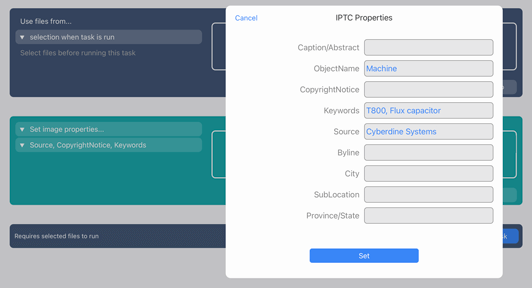
Change IPTC Properties in Bulk
You can update IPTC metadata across multiple images at once by editing fields such as copyright, keywords, and descriptive tags. This helps standardise image metadata in bulk without manual editing.
This is especially useful for preparing large image sets for archiving, publishing, or distribution.
Advanced Custom Task Examples
Custom Tasks can be combined into multi-step workflows that process files using several actions in sequence. This makes it possible to automate more complex file management tasks.
Below are some advanced examples of what you can achieve with workflow automation.
Rename PDFs with Dates in Bulk
You can automatically rename PDF files in a folder by adding date-based information to their filenames. For example, you can target PDFs modified within a specific time range and update their names to include the date they were last changed.
This is useful for keeping document versions clear and consistently labelled without manual renaming.
Automated Backup to Multiple Locations
You can automate backups by copying files from your iPhone or iPad to multiple destinations such as a computer or cloud storage services like Google Drive on a scheduled basis.
This ensures important files, such as photos or documents, are continuously backed up without requiring manual transfers.
Read guide: How to set up automated backups with Custom Tasks
Monitor a Folder for File Keyword and Copy Documents Automatically
You can monitor a specific folder for files that match defined criteria, such as a keyword in the filename. When a matching PDF is detected, it can be automatically copied to another location on a recurring schedule.
This is useful for automatically collecting and transferring specific types of documents, such as invoices or reports.
Read guide: How to monitor folders and automate file copying
Download PDFs from the last 7 days
You can automatically detect PDFs created within a defined time range, such as the last 7 days, and copy them to another folder or device.
This allows you to continuously gather and process recently created documents without manually selecting files.
Read guide: How to filter and automate recent files in FileBrowser
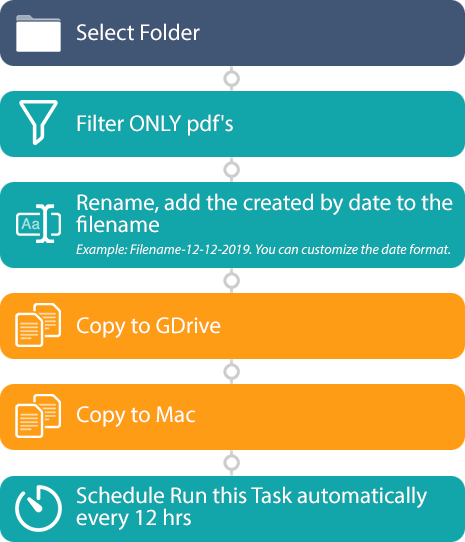
See a full list of actions you can use to create your Custom Tasks. We can't wait to see what workflows you create with Custom Tasks.

Unsure which version of FileBrowser is for you? Check out our comparison page.