How to Batch Rename Photos Using EXIF Data on iPhone and iPad
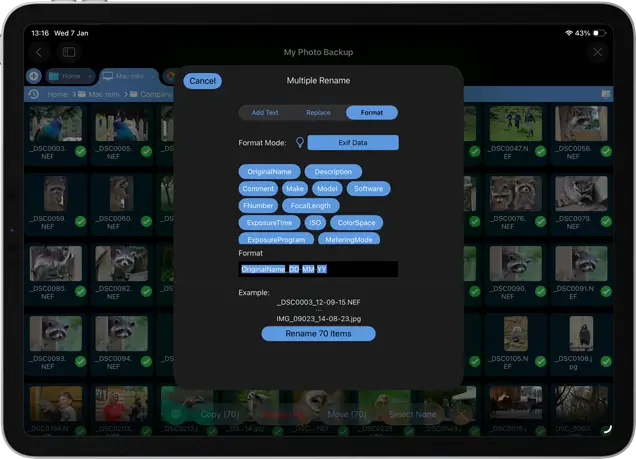
What can you add to a filename using EXIF data?
EXIF data is information stored inside an image file by a camera or other device. It can include details such as the date and time the photo was taken, camera manufacturer and model, focal length, aperture, exposure time and ISO.
With FileBrowser Professional and FileBrowserGO, you can select EXIF properties to include in a filename when renaming your photos. For example, you could include the camera make and model alongside the original filename, or add the date the photo was taken.
You can combine different EXIF properties with the original filename to create a naming format that suits your needs. When renaming multiple photos, the selected properties are taken from each individual photo's EXIF data.
FileBrowser Professional can combine the original filename with information recorded by the camera. For example:
| Original | New filename |
|---|---|
|
IMG_1234.jpg |
New Filename: IMG_1234-Apple-iPhone-16-Pro.jpg |
|
DSC_0345.jpg |
New Filename: 2026-09-22-DSC_0345.jpg |
|
DSC_0345.jpg |
New Filename: DSC_0345-ISO400-50mm.jpg |
|
DSC_0345.jpg |
New Filename: DSC_0345-Canon-EOS-R5.jpg |
Step 1: Browse to a photo folder
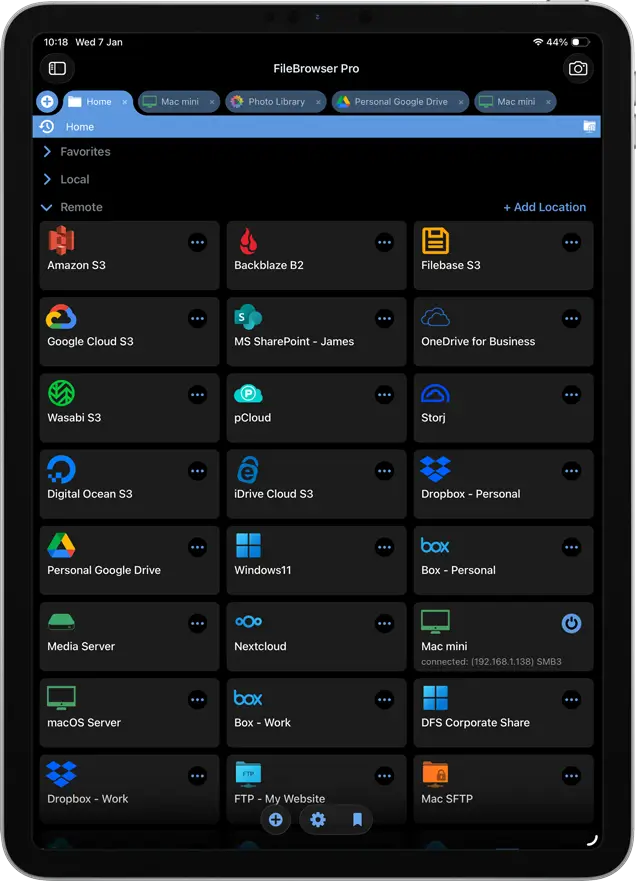
Navigate to your folder containing your photo files using FileBrowser Professional, which could be on a USB drive, your computer or your cloud storage.
 Please note you cannot rename the photos in the iPad/iPhone Camera Roll.
If you would like to try this for free, download FileBrowserGO for a limited trial.

Purchase the full version of FileBrowser Professional
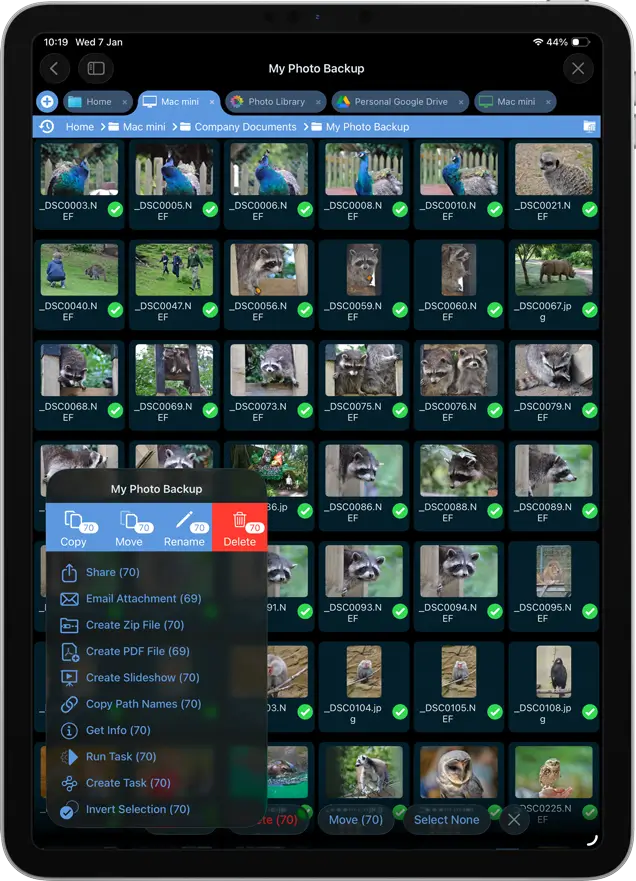
Step 2: Select the photos you want to rename
Tap and hold to enter multi select mode and select all the photos you want to rename. Once all your files are selected tap the context menu in the bottom left corner and select “Rename”.
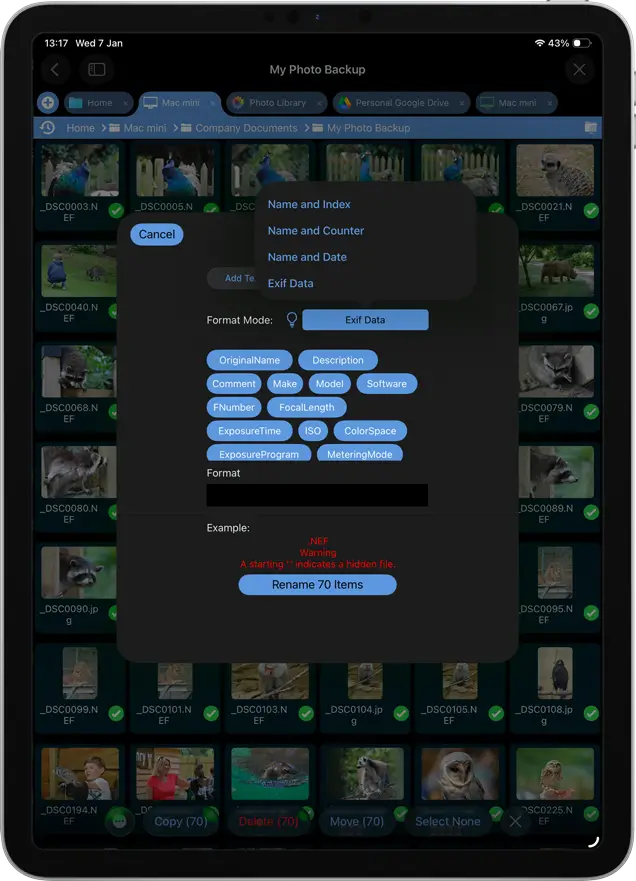
Step 3: Choose the EXIF Data format
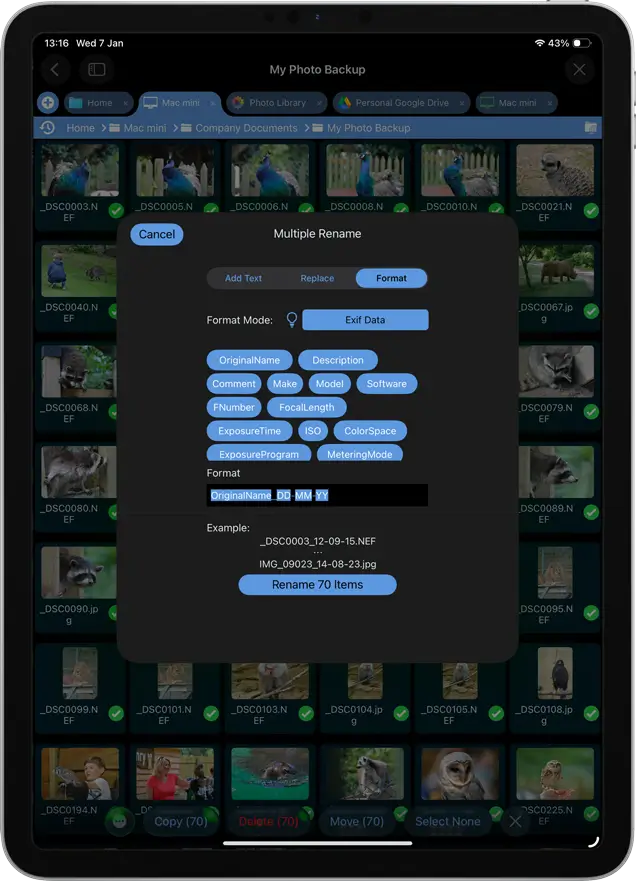
Then select “Format” in the Dialog that appears. Let’s add the Make and Model of the camera to the filenames for this example. First change the “Format Mode” to “EXIF Data”.
Step 4: Choose the EXIF data to add to the filename
Change the Format Mode to EXIF Data. This lets you choose information stored in each photo's EXIF metadata and include it in the filename.
For example, you can keep the original filename and add the camera manufacturer and model:
OriginalName-Make-Model
A photo originally named IMG_1234.jpg could therefore become:
IMG_1234-Canon-EOS-R5.jpg
You can select from the available EXIF properties to create a filename format that suits your needs. Depending on the information stored in the photo, you can include details such as the date and time the photo was taken, camera make and model, focal length, aperture, exposure time or ISO.
When multiple photos are selected, FileBrowser applies the format to each file using the EXIF information stored in that individual photo. This means that the filename can contain different EXIF values for each photo.


FAQ
-
What EXIF data can I add to a filename?
You can use supported EXIF information such as camera make, model, ISO, focal length, exposure information, image dimensions and date/time components when constructing filenames.
-
Can I batch rename photos using EXIF data on iPhone or iPad?
Yes. Select multiple photo files in FileBrowser Professional or FileBrowserGO, choose Rename → Format, switch to EXIF Data, and construct the filename using the available properties.
-
Can I rename photos using the date they were taken?
Yes. The capture date is available as date components such as DD, MM and YYYY. For a dedicated walkthrough of adding the date taken to multiple filenames, see the date-based renaming guide.
Download Now


