How to Configure Windows 7 Firewall for Network Sharing
If FileBrowser cannot connect to your Windows 7 PC even though file sharing is enabled, the Windows Firewall may be blocking SMB network connections.
This guide explains how to allow Windows file sharing through the firewall so FileBrowser can connect successfully.
- Launch Control Panel and click "Windows Firewall."
- Click the link "Allow a program or feature through Windows Firewall."
You should now see the following screen.
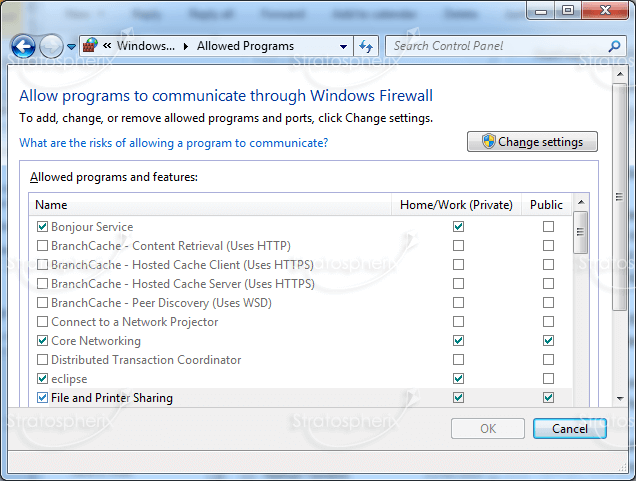
Ensure that "File and Printer Sharing" is ticked.
If you are going to access your Windows 7 machine from outside your LAN, ensure that both
"Private" and "Public"
columns are ticked.
If you are not using Windows Firewall but are using a third party product such
as ZoneAlarm or Norton Internet Security then a similar exception will be necessary.
Please try disabling your firewall temporarily to see if this is the problem.
Options
Back to main
About FileBrowser
FileBrowser provides reliable access to files stored on Windows PCs, NAS drives, and other network storage devices directly from iPhone and iPad.
Whether you are connecting on a home network, office network, or VPN connection, FileBrowser is designed for fast and secure access to Windows shared folders, SMB network drives, and file servers.
Download FileBrowser
Access files on your Windows PC, network shares, and NAS drives directly from iPhone and iPad.


Unsure which version of FileBrowser is for you? Check out our comparison page.