How to Find your Computer Name on Windows 7
If you are setting up a network connection, you may need to know your Windows 7 computer name so it can be accessed from another device on your local network.
This name is used by Windows to identify your PC for file sharing and network connections, and it is often required when connecting from apps like FileBrowser.
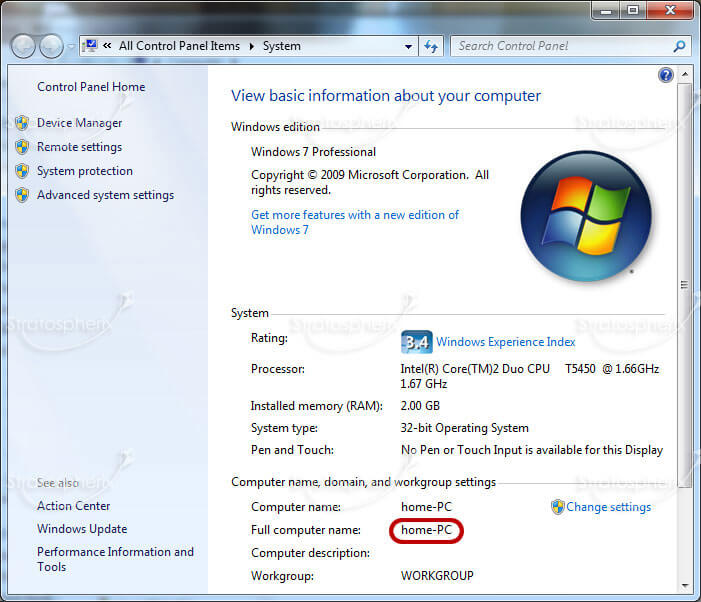
- Launch Windows Explorer.
- In the left-hand pane, find the "Computer" node.
- Right-click it and choose "Properties".
- In the window that appears, left-click the "Computer Name" tab. You should now have a window that looks like the following.
- enter the text ringed in red into FileBrowser's "Name or URL" field.
Options
Back to main
About FileBrowser
FileBrowser provides reliable access to files stored on Windows PCs, NAS drives, and other network storage devices directly from iPhone and iPad.
Whether you are connecting on a home network, office network, or VPN connection, FileBrowser is designed for fast and secure access to Windows shared folders, SMB network drives, and file servers.
Download FileBrowser
Access files on your Windows PC, network shares, and NAS drives directly from iPhone and iPad.


Unsure which version of FileBrowser is for you? Check out our comparison page.