Unknown Username or Password When Connecting to macOS Over Network
When connecting to a Mac over a network, this error message usually means that the user name and password don't match with one that has file shares on macOS.
The steps below explain how to check the user account on macOS.
- Open the "System Settings" app on your Mac.
- Click "General" then "Sharing".
- Click the info icon to the right of the "File Sharing" section.
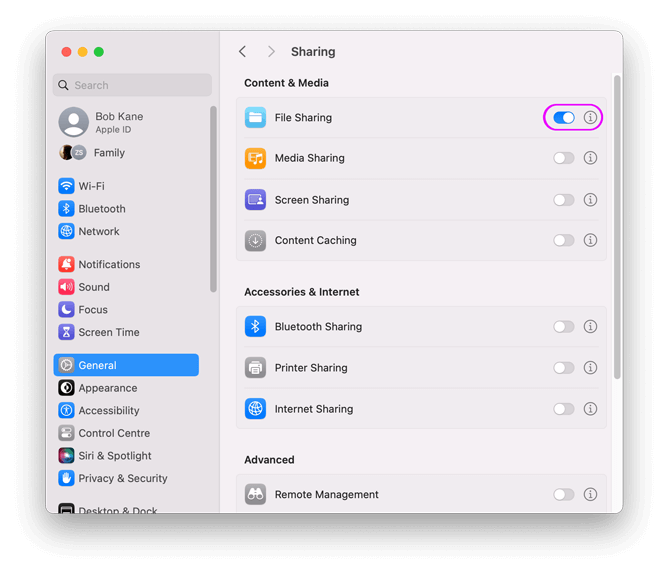
- In the new dialog click "Options".
- Underneath the (checked) "Share files and folders using SMB" option,
you should see a list of user accounts with shared files.
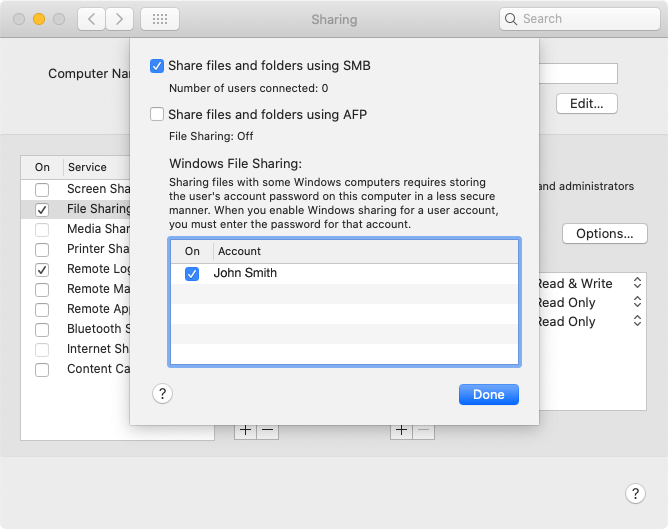
- Enter one of these names into FileBrowser. Upper or lower case is fine, and if the name contains spaces, you can omit them.
- The password for the account is case-sensitive so be careful when entering it into FileBrowser.
Options
Back to main
About FileBrowser
FileBrowser provides reliable access to files stored on Macs, NAS drives, and other network storage devices directly from iPhone and iPad.
Whether you are connecting on a home network, office network, or VPN connection, FileBrowser is designed for fast and secure access to Mac shared folders, SMB shares, and network storage.
Download FileBrowser
Access files on your Mac, shared folders, and NAS drives directly from iPhone and iPad.


Compare FileBrowser
Versions
Unsure which version of FileBrowser is for you? Check out our comparison page.