User Guide Full Index
 Connect to...
- Connect to Mac
- Connect to Windows
- Connect to NAS Drives
- Connect to Cloud Storage
- USB Drives
- Map an App folder
 Navigation
File Listing Options
Navigation
File Listing Options
 Selecting and Copying Files
- File Selection Mode
- Selecting Images in the Image Viewer
- Copying Files
- Drag and Drop
- AirDrop Files
- Copy Large files with macOS Finder
- Share Files
- Copy to iOS Clipboard
- eMail Files
- Download Files Using URL
 Viewing Documents
Editing Documents
Annotate/Markup
Viewing Documents
Editing Documents
Annotate/Markup
 Bulk Rename Tools
- Bulk Rename - Add text to filenames
- Bulk Rename - Add Index or Counter
- Bulk Rename - Find and Replace
- Bulk Rename - Rename with Dates
- Bulk Rename - Rename using EXIF Data
 Search
 Creating and Editing PDFs
 Working with Images
- Rotate Images
- Convert Images
- Create Contact Sheets
- Rate Photos with XMP
- Remove GPS from Photos
- Edit IPTC Properties on Photos
- Slideshows
- - Chromecast Images
- - Airplay Photos
 Playing Movies
 Playing Music
- Supported Music Types
- Play Modes
- Queueing Tracks
- Speed Up/Slow Down Playback
- AirPlay Music
- Chromecast Music
- Cast Music to Alexa Devices
- Recording Audio into FileBrowser
 Sharing Folders
 Files App Integration
 WebDAV Server
 Sync and Backup
 Custom Tasks
- Create Custom Tasks
- Monitor a Folder for a Keyword and Download Hourly
- Download PDFs from the Last 7 Days
- Trim PDF Pages
- Change IPTC Properties on Images in Bulk
- Rotate Images in Bulk
- Automated Backup of Video Files from a Chosen Folder
- Automate Backup and Deletion of Files Older than a Chosen Date
- Remove GPS from Multiple Photos
- Convert Images in Bulk
 Advanced
- Deleted Files
- Compare Files and Folders
- Siri Reminders
- Siri Voice Shortcuts
- QR and BarCode Support
- Face ID Logins
- Kiosk Mode
- Family Sharing
- FileBrowser Configuration Files
- Transfer FileBrowser Settings
Configuration Files
How to Compare Files and Folders in FileBrowser
FileBrowser lets you compare files and folders side‑by‑side on your iPhone or iPad, so you can quickly identify matching or different files and copy or organise them between locations.
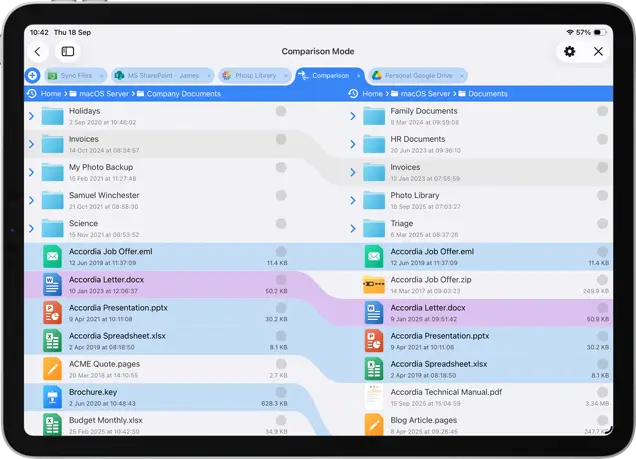
To compare a folder either tap the context menu for a folder and select "Compare With Folder" or navigate into a folder tap the View Options button and select "Compare".
Grey: Same Folder name.
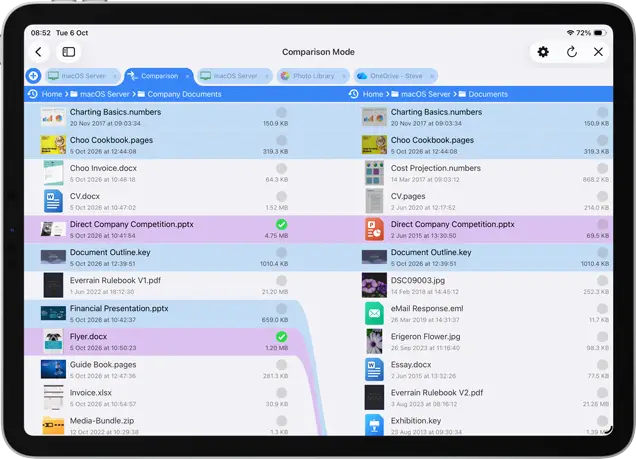
Purple: Same File name only.
Blue: Same File name and File Size (and Date if the "Dates Must Match" setting is turned on).
When in Comparison Mode, tap and hold a file to bring up the menu:
- Copy to : Copy the current file to the other compared folder.
- Rename: You can choose to rename the file or both files.
- Delete: You can choose to delete the file or both files.
- and other options listed below:
View Both
Open both documents side by side in preview so you can compare the differences.

Select Matching in Folder
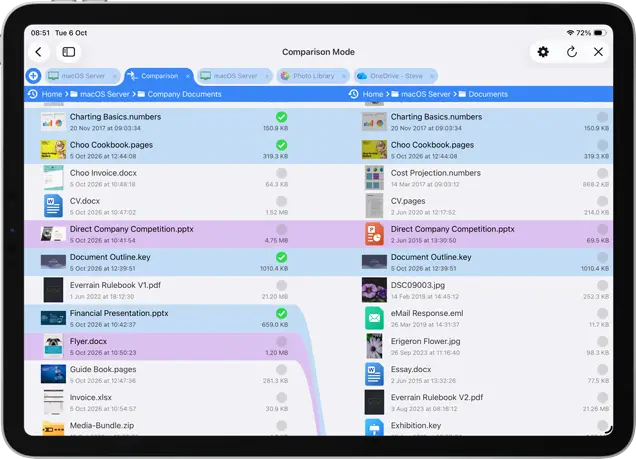
Selects the blue files that match the file name, size (and date, if enabled in the settings section below). You can then long tap a file and select 'Copy selected to Right'.
Select Non-Matching in Folder
Selects all files that are not present in the compared folder. You can then long tap a file and select 'Copy selected to Right'.
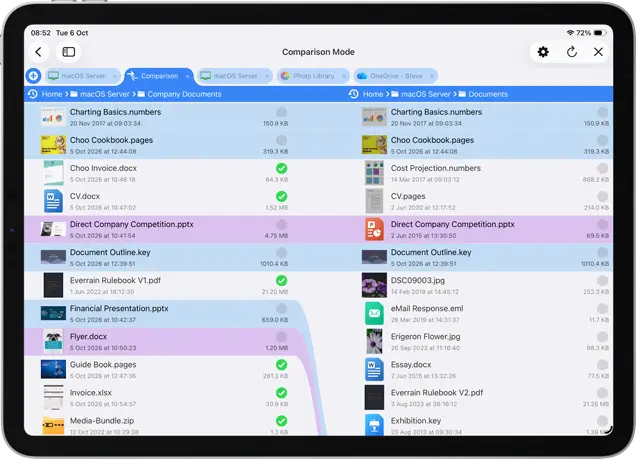
Select Different in Folder
Selects the purple files that have the same file name but a different size or date. You can then long tap a file and select 'Copy selected to Right'.
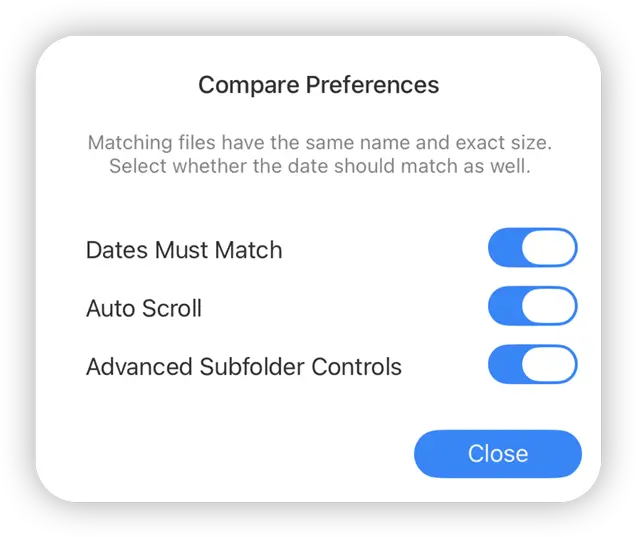
Comparison Settings
Date Must Match: If this is checked, then Blue items match all 3 requirements, Name, Size and Date.
Auto Scroll: This scrolls both directories when you scroll either side.
Advanced Subfolder Controls: Tap the chevrons to expand subfolders whilst in Comparison Mode.
Comparison Mode is only available in FileBrowserGO and FileBrowser Professional.
The standard edition of FileBrowser can be upgraded to FileBrowser Professional via the FileBrowser Professional Bundle.


Unsure which version of FileBrowser is for you? Check out our comparison page.