Watch Movies on Your iPad — Stream from PC, Mac, or Cloud
Start Watching Instantly — No Transfers or Syncing Needed
Stream videos to your iPad or iPhone directly from your computer, NAS or cloud storage — without downloading files or setting up extra software. FileBrowser’s built-in media player for iOS makes it easy to play your movies and videos instantly, whether they’re stored on a Windows PC, Mac (macOS), or services like Synology, QNAP and popular cloud platforms.
Enjoy smooth, high-quality playback wherever you are, with the flexibility to stream instantly or download videos for offline viewing — all in one powerful, easy-to-use app.
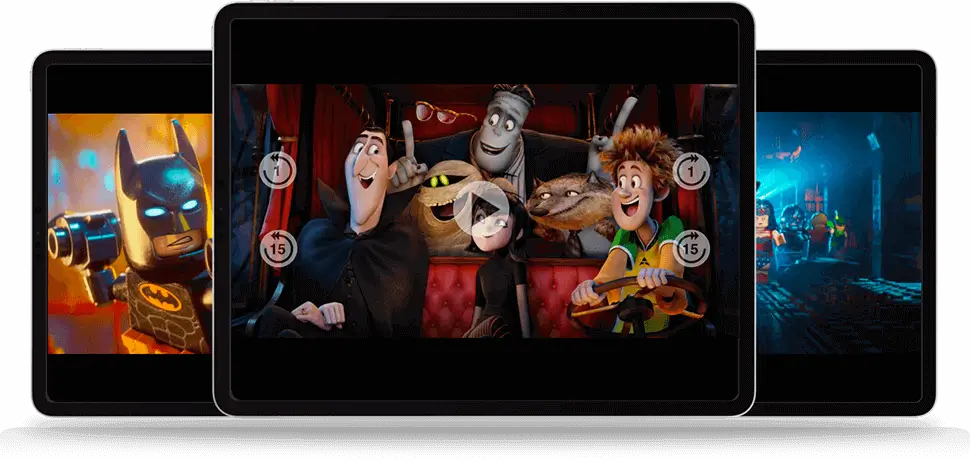
Never lose your place — FileBrowser automatically remembers the playback position of your recent videos, so you can continue watching exactly where you left off. Perfect for long movies or TV series you come back to regularly.
Available on the App Store with a free trial, so you can start streaming videos to your iPad or iPhone instantly.
Free Trial

FileBrowser
Save Videos to Watch Offline (No Internet Needed)
Copy your movie files to your iPad or iPhone and enjoy offline playback anywhere—no internet, no buffering, just your own videos ready to watch.
Access Your Movies from USB Drives and External Storage
Skip the storage limits—play movies directly from USB drives and external storage on your iPad or iPhone, with no copying required.
Cast Movie Files to your Smart TV

Cast Movie Files from Your Mac, PC, or Cloud to TV via iPad
Use FileBrowser to access your movie files stored on your Mac (macOS), Windows PC, or cloud storage, and cast them to your TV with Chromecast—all through your iPad. Watch your own videos on the big screen without copying or syncing files.
Simply tap on the Chromecast icon and select your Chromecast TV or device from the list. See Google Cast's Full Supported Format List.

Play Movie Files on TV via AirPlay from Your iPad
Stream movie files stored on your computer or cloud directly to an AirPlay-enabled TV using FileBrowser on your iPad. Enjoy instant playback of your own videos on the big screen, no transfers or conversions needed.
Simply tap the AirPlay icon next to the volume control and choose your AirPlay device from the list. FileBrowser casts your video to your TV full screen without the controls.

I access my movie library on my home server through this program and use AirPlay to watch. Works great!App Store

Play All Major Video Formats on Your iPad or iPhone
FileBrowser supports all the popular video formats, including MP4, MOV, M4V, 3GP, 2G2 & AVI. Stream your movie files directly from your Mac, Windows PC, or cloud storage straight to your iPad or iPhone—no copying required.
MP4
MOV
M4V
3GP
3G2
AVI

Stream Other Formats to Your Favorite Video Player Apps
For video formats not directly supported in FileBrowser, you can still watch your movies by opening them in apps like VLC or Infuse. This ensures all your movie files remain accessible and easy to enjoy on your iPad or iPhone.
Simply tap "Stream to another app" a list of your Movie players will be listed. If they are not installed we recommend a few.
The following video formats can be streamed through FileBrowser to other apps:
WMV / DIVX / FLV / MPG / MPEG / MKV / MOD / TS / VOB / OGG / RM / RMVB / ISO / IMG / WTV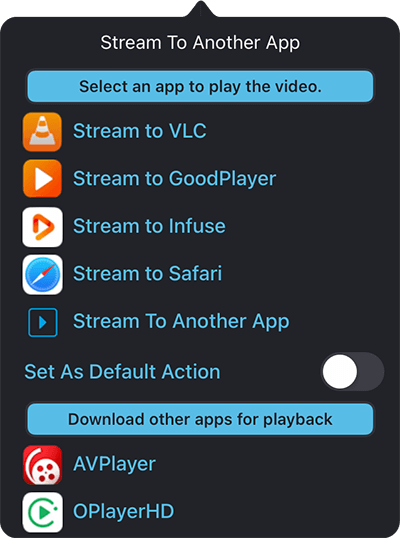
Choose your preferred video player in FileBrowser, and it will automatically open your movie files in that app every time. Whether it’s VLC, Infuse, or another player, this lets you enjoy your videos without having to select an app each time—streamlining your movie-watching experience.
FileBrowser integrates with the following video apps:





With FileBrowser, you can stream your movie files to any compatible app using a direct URL. This lets you play your videos in apps of your choice—like VLC or Infuse—while keeping your files on your Mac, PC, or cloud storage. Enjoy full flexibility and control over how you watch your movies.
I use this app daily to access documents and media files on my home server via wifi. In this way I have virtually limitless access to data from any of my apple devices. With the help of VLC I can watch all media files on my Apple devices It is simply brilliantUSA App Store - Gray1946
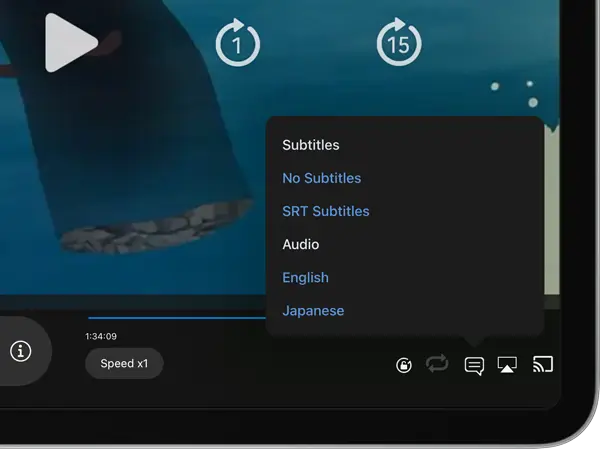
Full Subtitle Support for Your Videos
FileBrowser lets you load subtitles for your movie files directly on your iPad or iPhone. Whether your files include embedded subtitles or separate subtitle files, you can enable them easily for a fully accessible and personalized viewing experience. Never miss dialogue, even when watching foreign-language films or TV shows.
Full Audio Language Support
FileBrowser lets you enjoy the audio tracks of your movie files in different languages. If your movies include multiple spoken languages, you can easily select the one you want to listen to, giving you full control over your viewing experience on your iPad or iPhone.
Stream Your Music & Podcasts Over Wi-Fi
FileBrowser lets you stream your music and podcast files stored on your Mac (macOS), Windows PC, or cloud storage directly to your iPad or iPhone over your Wi-Fi network. Enjoy your personal audio collection anywhere in your home or office—no copying or syncing required.
Stream the following music formats MP3, M4a, Wav, Hi-Res FLAC from your cloud storage, network media drives, your PC or Mac.
MP3
M4a
Wav
Hi-Res FLAC
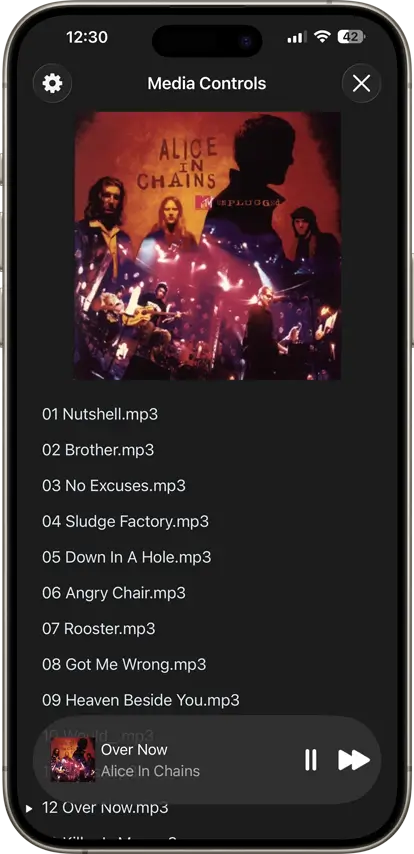

Queue your Music
Play entire albums by tapping play on the first track on an album and all tracks will automatically queue up to your "Now Playing" list in FileBrowser's media player.
Browse your music library and queue individual tracks or podcasts to the "Now Playing" list. Queue tracks from different folders, servers, or from cloud storage. You can reorder your play queue by simply draging the tracks up and down.

Play modes
Multiple play modes allow you to play tracks from the current folder in sequence, randomize, repeat, or play a single track.

Background audio
Play music in the background whilst watching a photo slideshow, browsing the Internet, viewing documents, or whilst running other apps.
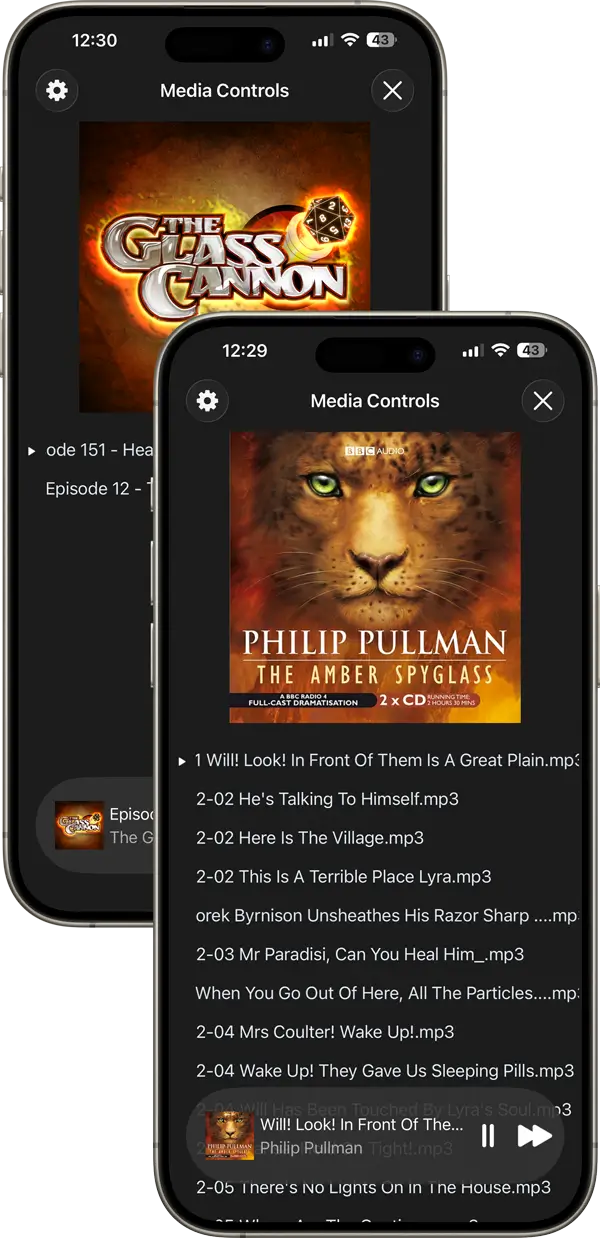
AudioBooks & podcasts
FileBrowser is great for listening to your favourite Podcasts or Audiobooks, stream them directly from your computer or cloud storage or save them to your iPad or iPhone to listen to offline.
Remember your Playback Position
Automatically remember your Audiobook last playback position. Use the multi-select feature to queue many podcasts in one go.
Adjust Playback Speed
Audiobooks and Podcasts are sometimes a little slow. Control the playback speed, with automatic pitch adjustment. Great for learning to play music slowed down but at the correct pitch.
Stream Your Music to Other Devices
With FileBrowser, you can stream your music files from your Mac, PC, or cloud storage to a variety of devices over your Wi-Fi network. Whether it’s a Chromecast, AirPlay device, or Amazon Echo, your personal audio library goes wherever you want it.
Chromecast
Stream your music to any Chromecast-enabled speaker or device, including Chromecast Multi-room for synchronized playback across multiple speakers. Enjoy your personal library directly from your Mac (macOS), Windows PC, or cloud storage without copying files—just select your devices and start listening.
Airplay
Send your audio to one or more AirPlay-enabled speakers or Apple TV simultaneously. Control playback right from your iPad or iPhone while streaming music from your Mac (macOS), Windows PC, or cloud storage seamlessly over Wi-Fi.

Amazon Echo
Pair your iPad with Amazon Echo devices to play your music throughout your home. Once your iPad is connected, FileBrowser lets you stream your personal audio files to Echo speakers with full control over playback. Follow our step-by-step guide to get your devices set up quickly and easily.
FAQ
-
Can I stream my own movie files to my iPad or iPhone?
Yes! FileBrowser lets you stream movie files stored on your Mac (macOS), Windows PC, or cloud storage directly to your iPad or iPhone over Wi-Fi—no copying needed.
-
Which video formats are supported?
FileBrowser supports all major video formats including MP4, MOV, M4V, 3GP, 2G2 & AVI.
-
Can I download files for offline viewing?
Definitely. You can download your movie files to your iPad or iPhone for offline playback, perfect for travel or areas without Wi-Fi.
-
Can FileBrowser stream videos without downloading them?
Yes. FileBrowser streams videos directly from your PC, Mac, NAS, or cloud storage, so you can watch instantly without copying files to your device.
-
Does FileBrowser support cloud storage media playback?
Yes. You can stream videos stored in supported cloud services directly within FileBrowser without re-downloading them.
-
Can I download videos for offline viewing?
Yes. You can download videos to your iPhone or iPad and watch them later without an internet connection.
-
Does the media player support subtitles and audio tracks?
Yes. FileBrowser supports subtitles and multiple audio tracks where available.
-
Do I need to install any server software on my computer?
No. FileBrowser connects directly to your existing PC, Mac, NAS, or cloud storage without requiring additional server software.

Take Your Music Anywhere with MusicStreamer
Bring your entire music library to your iPad or iPhone — no syncing required. With MusicStreamer, you can browse and play your songs directly from your computer, or network drive over Wi-Fi, giving you instant access to every track, album, or playlist.
Play Music on Your Favorite Speakers
Use AirPlay, Bluetooth, or Chromecast to play music through your favorite speakers, filling your room with high-quality sound from your personal library.
Create and Manage Playlists
Build new playlists, import your existing m3u or m3u8 playlists, or export playlists back to iTunes. MusicStreamer automatically matches tracks in your library, making playlist management effortless.
Listen Offline
Download individual tracks, albums, or full playlists for offline listening — perfect for flights, road trips, or anywhere without Wi-Fi.

Unsure which version of FileBrowser is for you? Check out our comparison page.