 User Guide Full Index
 Connect to...
- Connect to Mac
- Connect to Windows
- Connect to NAS Drives
- Connect to Cloud Storage
- USB Drives
- Map an App folder
 Navigation
File Listing Options
Navigation
File Listing Options
 Selecting and Copying Files
- File Selection Mode
- Selecting Images in the Image Viewer
- Copying Files
- Drag and Drop
- AirDrop Files
- Copy Large files with macOS Finder
- Share Files
- Copy to iOS Clipboard
- eMail Files
- Download Files Using URL
 Viewing Documents
Editing Documents
Annotate/Markup
Viewing Documents
Editing Documents
Annotate/Markup
 Bulk Rename Tools
- Bulk Rename - Add text to filenames
- Bulk Rename - Add Index or Counter
- Bulk Rename - Find and Replace
- Bulk Rename - Rename with Dates
- Bulk Rename - Rename using EXIF Data
 Search
 Creating and Editing PDFs
 Working with Images
- Rotate Images
- Convert Images
- Create Contact Sheets
- Rate Photos with XMP
- Remove GPS from Photos
- Edit IPTC Properties on Photos
- Slideshows
- - Chromecast Images
- - Airplay Photos
 Playing Movies
 Playing Music
- Supported Music Types
- Play Modes
- Queueing Tracks
- Speed Up/Slow Down Playback
- AirPlay Music
- Chromecast Music
- Cast Music to Alexa Devices
- Recording Audio into FileBrowser
 Sharing Folders
 Files App Integration
 WebDAV Server
 Sync and Backup
 Custom Tasks
- Create Custom Tasks
- Monitor a Folder for a Keyword and Download Hourly
- Download PDFs from the Last 7 Days
- Trim PDF Pages
- Change IPTC Properties on Images in Bulk
- Rotate Images in Bulk
- Automated Backup of Video Files from a Chosen Folder
- Automate Backup and Deletion of Files Older than a Chosen Date
- Remove GPS from Multiple Photos
- Convert Images in Bulk
 Advanced
- Deleted Files
- Compare Files and Folders
- Siri Reminders
- Siri Voice Shortcuts
- QR and BarCode Support
- Face ID Logins
- Kiosk Mode
- Family Sharing
- FileBrowser Professional Configuration Files
- Transfer FileBrowser Professional Settings
Configuration Files
Use the History List in FileBrowser Professional
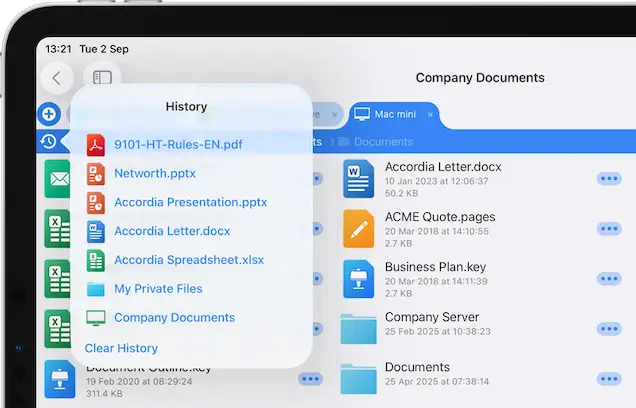
FileBrowser Professional keeps a history of recently opened files and folders so you can quickly return to them whenever you need.
History
Quickly re-open the files of folders you recently accessed.
- Tap the History icon to the left of the breadcrumb bar.
- Tap a file or folder to navigate to it.
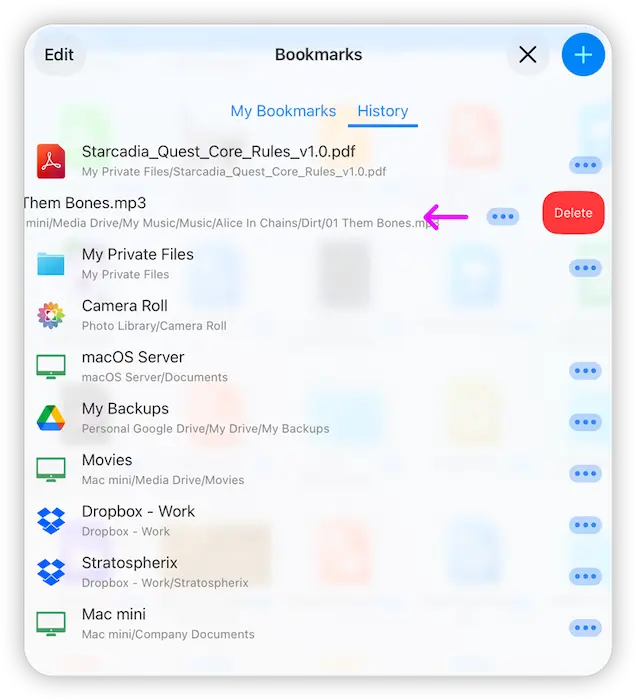
To clear an item from your History, tap the Bookmarks icon and select the "History" tab.
Delete these entries by:
- Single file: Swipe right on a file and tap the delete icon.
- Multiple files: Tap "Edit" then delete items using the "-" symbol icons.
- All History: Tap "Edit" then tap the "Clear History" button.
Turn Off History
If you want to turn off history: Use the cog icon on the home screen and select "Admin Settings -> Feature Switches" and turn off the "Show Folder History" switch.
Download Now


Compare FileBrowser
Versions


