User Guide Full Index
 Connect to...
 Navigation
File Listing Options
Navigation
File Listing Options
 Selecting and Copying Files
- File Selection Mode
- Selecting Images in the Image Viewer
- Copying Files
- Drag and Drop
- AirDrop Files
- Copy Large files with macOS Finder
- Share Files
- Copy to iOS Clipboard
- eMail Files
- Download Files Using URL
 Viewing Documents
Editing Documents
Annotate/Markup
Viewing Documents
Editing Documents
Annotate/Markup
 Bulk Rename Tools
- Bulk Rename - Add text to filenames
- Bulk Rename - Add Index or Counter
- Bulk Rename - Find and Replace
- Bulk Rename - Rename with Dates
- Bulk Rename - Rename using EXIF Data
 Search
 Creating and Editing PDFs
 Working with Images
 Playing Movies
 Playing Music
- Supported Music Types
- Play Modes
- Queueing Tracks
- Speed Up/Slow Down Playback
- AirPlay Music
- Chromecast Music
- Recording Audio into FileBrowser
 Sharing Folders
 Files App Integration
 Advanced
Use the History List in FileBrowser for Education
FileBrowser for Education keeps a history of recently opened files and folders so you can quickly return to them whenever you need.
History
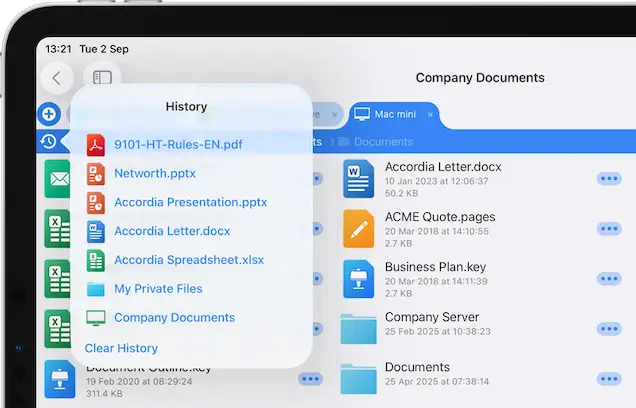
Quickly re-open the files of folders you recently accessed.
- Tap the History icon to the left of the breadcrumb bar.
- Tap a file or folder to navigate to it.
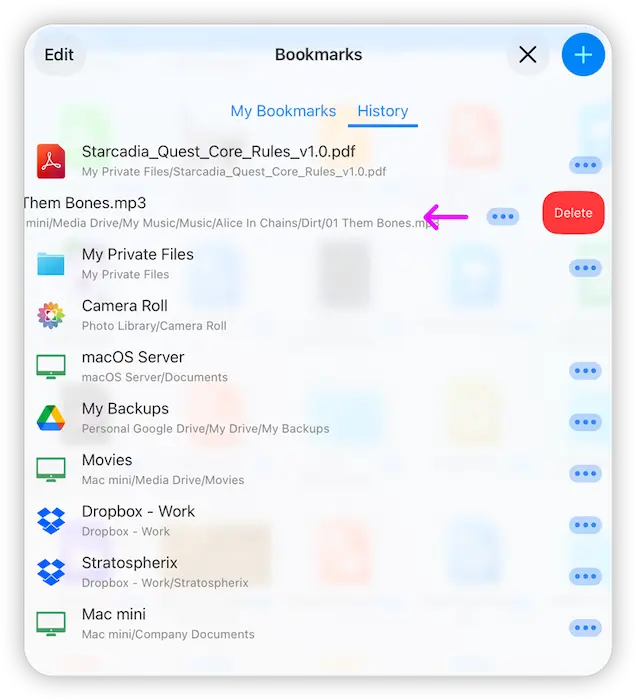
To clear an item from your History, tap the Bookmarks icon and select the "History" tab.
Delete these entries by:
- Single file: Swipe right on a file and tap the delete icon.
- Multiple files: Tap "Edit" then delete items using the "-" symbol icons.
- All History: Tap "Edit" then tap the "Clear History" button.
Turn Off History
If you want to turn off history: Use the cog icon on the home screen and select "Admin Settings -> Feature Switches" and turn off the "Show Folder History" switch.