User Guide Full Index
 Connect to...
 Navigation
File Listing Options
Navigation
File Listing Options
 Selecting and Copying Files
- File Selection Mode
- Selecting Images in the Image Viewer
- Copying Files
- Drag and Drop
- AirDrop Files
- Copy Large files with macOS Finder
- Share Files
- Copy to iOS Clipboard
- eMail Files
- Download Files Using URL
 Viewing Documents
Editing Documents
Annotate/Markup
Viewing Documents
Editing Documents
Annotate/Markup
 Bulk Rename Tools
- Bulk Rename - Add text to filenames
- Bulk Rename - Add Index or Counter
- Bulk Rename - Find and Replace
- Bulk Rename - Rename with Dates
- Bulk Rename - Rename using EXIF Data
 Search
 Creating and Editing PDFs
 Working with Images
 Playing Movies
 Playing Music
- Supported Music Types
- Play Modes
- Queueing Tracks
- Speed Up/Slow Down Playback
- AirPlay Music
- Chromecast Music
- Recording Audio into FileBrowser
 Sharing Folders
 Files App Integration
 Advanced
Using Tabs and the Breadcrumb Bar in FileBrowser for Education
Learn how to navigate your files efficiently in FileBrowser for Education using tabs and the breadcrumb bar to quickly access and manage your documents.
Tabs
Create a New Tab
Tap the Plus icon on the far left of the Tab bar to open a new Tab.
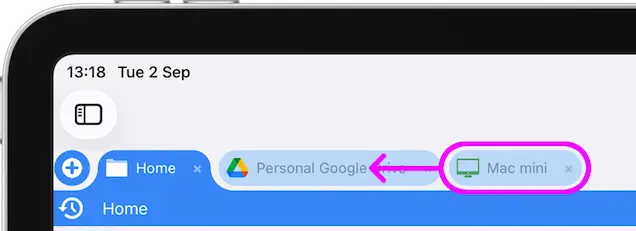
Re-arrange Tabs
Tap and hold a Tab then drag it left or right to re-position it. You can also drag a tab to the far left or right to open a second instance of FileBrowser for Education.
Copy Files Between Tabs
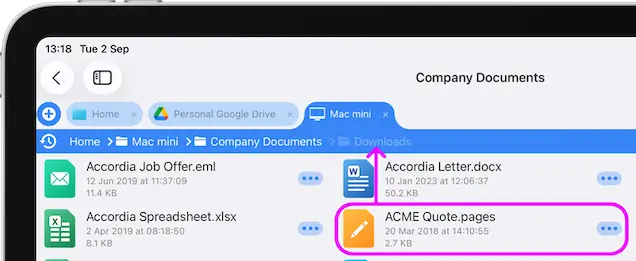
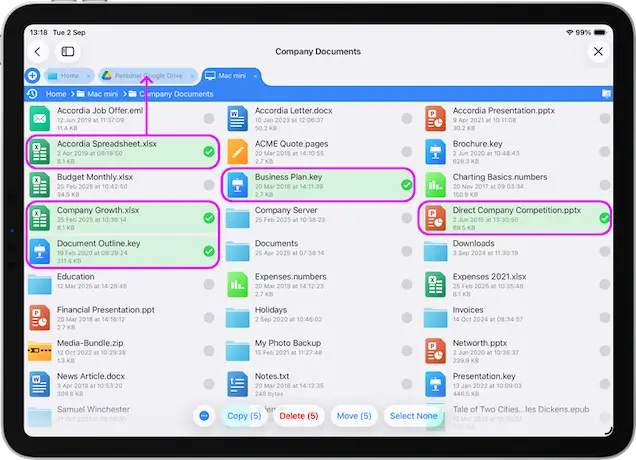
Drag a single or multi file selection into an existing tab, and drop them into that folder or drag them onto the breadcrumb bar and wait for the view to navigate then drop the file there instead.
Note: Dragging files to somewhere on the same location will move the files. Dragging files to another location will copy the files.
Tip: You can change the tabs from using folder names to just the location name. Under "Preferences -> Tab Name from Folder".
Breadcrumb
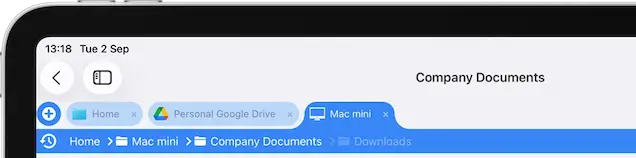
FileBrowser for Education's Breadcrumb bar updates as you navigate into folders displaying each nested folder, tapping any folder name in the bar will navigate back to that folder.
When navigating back up the folders towards the root, the previous folders you navigated to are still displayed but greyed out you can tap these to navigate back to that folder.
Tip: You can drag files or folders onto the breadcrumb bar to quickly navigate to a folder and copy the files into the chosen folder.