User Guide Full Index
 Connect to...
 Navigation
File Listing Options
Navigation
File Listing Options
 Selecting and Copying Files
- File Selection Mode
- Selecting Images in the Image Viewer
- Copying Files
- Drag and Drop
- AirDrop Files
- Copy Large files with macOS Finder
- Share Files
- Copy to iOS Clipboard
- eMail Files
- Download Files Using URL
 Viewing Documents
Editing Documents
Annotate/Markup
Viewing Documents
Editing Documents
Annotate/Markup
 Bulk Rename Tools
- Bulk Rename - Add text to filenames
- Bulk Rename - Add Index or Counter
- Bulk Rename - Find and Replace
- Bulk Rename - Rename with Dates
- Bulk Rename - Rename using EXIF Data
 Search
 Creating and Editing PDFs
 Working with Images
 Playing Movies
 Playing Music
- Supported Music Types
- Play Modes
- Queueing Tracks
- Speed Up/Slow Down Playback
- AirPlay Music
- Chromecast Music
- Recording Audio into FileBrowser
 Sharing Folders
 Files App Integration
 Advanced

Connect FileBrowser for Education to Your Mac
Easily connect FileBrowser for Education to your Mac over a local network to browse, open, and manage Mac files directly from your iPhone or iPad.
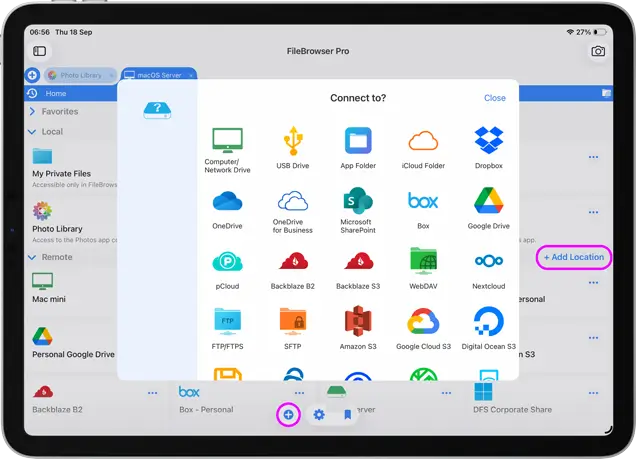
Simply Tap the "+ Add Location" or the "+" icon on the home screen to start the setup wizard.
Tap the "Computer/Network Drive", this will scan your WiFi network for your Mac, once discovered select it.
If your Mac isn't discovered, please check that File Sharing is enabled please see our Guide.
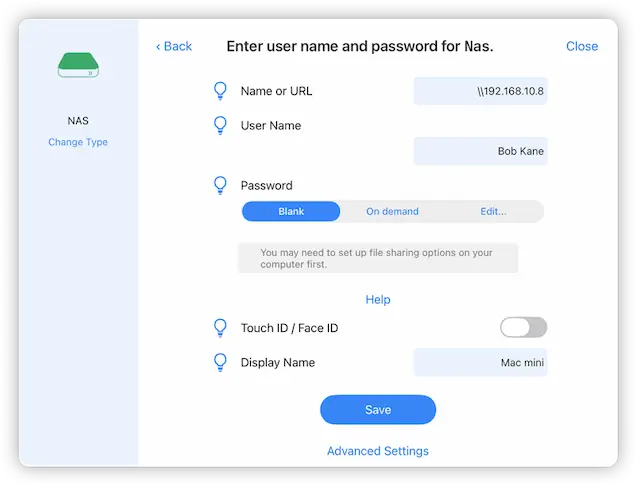
Enter the Username and Password for your Mac. If you are unsure please use our Guide.
If you still can't connect try our interactive troubleshooter guide.

Manual Setup
You will need to enter the following information to get connected:
Name or URL - Enter your computer name or IP address, if you don't know it see our guides below.
Enter your Username and Password.
Then tap "Save" and select your new location to connect to your computer.