User Guide Full Index
 Connect to...
 Navigation
File Listing Options
Navigation
File Listing Options
 Selecting and Copying Files
- File Selection Mode
- Selecting Images in the Image Viewer
- Copying Files
- Drag and Drop
- AirDrop Files
- Copy Large files with macOS Finder
- Share Files
- Copy to iOS Clipboard
- eMail Files
- Download Files Using URL
 Viewing Documents
Editing Documents
Annotate/Markup
Viewing Documents
Editing Documents
Annotate/Markup
 Bulk Rename Tools
- Bulk Rename - Add text to filenames
- Bulk Rename - Add Index or Counter
- Bulk Rename - Find and Replace
- Bulk Rename - Rename with Dates
- Bulk Rename - Rename using EXIF Data
 Search
 Creating and Editing PDFs
 Working with Images
 Playing Movies
 Playing Music
- Supported Music Types
- Play Modes
- Queueing Tracks
- Speed Up/Slow Down Playback
- AirPlay Music
- Chromecast Music
- Recording Audio into FileBrowser
 Sharing Folders
 Files App Integration
 Advanced
How to Mark Up PDFs and Images in FileBrowser for Education
Easily annotate your PDFs and images in FileBrowser for Education using highlights, comments, and drawing tools to collaborate, review, and organize your files.
Annotate/Markup PDFs
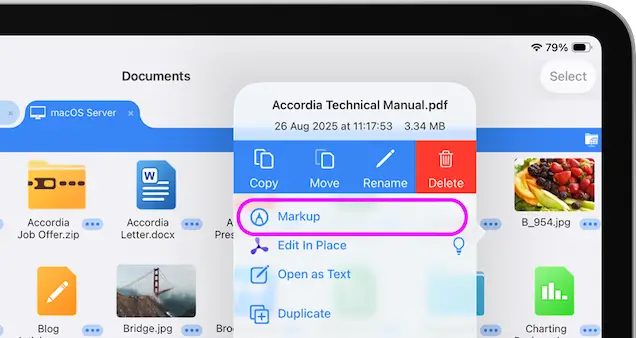
To Markup a PDF follow the steps below:
- Tap the file actions menu.
- Select "Markup".
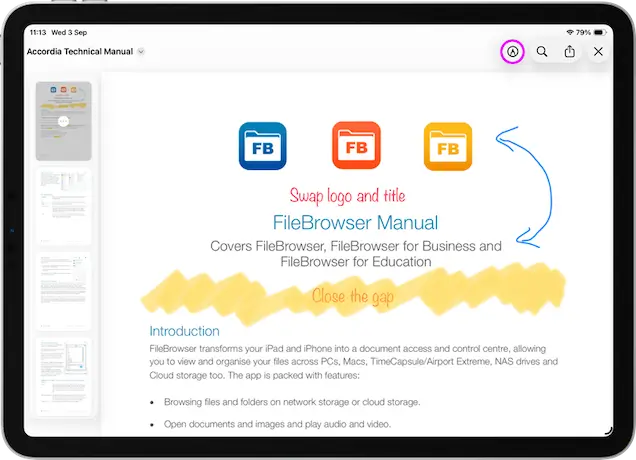
- Tap the Pencil icon.
- Use the iOS Markup tools to annotate your PDF.
- Once finished tap the blue tick. On the iPhone tap the 3 dots menu then select "Done".
Annotate/Markup Images
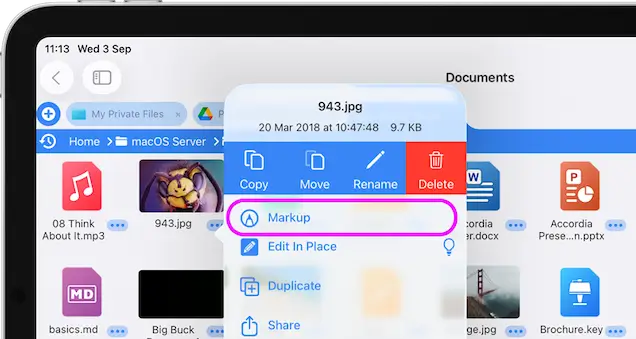
To Markup an image follow the steps below::
- Tap the file actions menu.
- Select "Markup".
- Tap the Pencil icon.
- Use the iOS Markup tools to annotate your image.
- Once finished tap the blue tick.. On the iPhone tap the 3 dots menu then select "Done".