User Guide Full Index
 Getting Started
Connect to...
Getting Started
Connect to...
 Navigation
File Listing Options
Navigation
File Listing Options
 Selecting and Copying Files
- File Selection Mode
- Selecting Images in the Image Viewer
- Copying Files
- Drag and Drop
- AirDrop Files
- Share Files
- eMail Files
 Viewing Documents
Annotate/Markup
Merge PDFs
Viewing Documents
Annotate/Markup
Merge PDFs
 Bulk Rename Tools
- Bulk Rename - Add text to filenames
- Bulk Rename - Find and Replace
- Bulk Rename - Add Indexes / Counter
- Bulk Rename - Rename with Dates
- Bulk Rename - Rename using EXIF Data
 Search
 Working with Images
- Rotate Images
- Convert Images
- Create Contact Sheets
- Rate Photos with XMP
- Remove GPS from Photos
- Edit IPTC Properties on Photos
- Slideshows
 Playing Movies
 Playing Music
 Working with Finder
 WebDAV Server
 Sync and Backup
 Custom Tasks
- Create Custom Tasks
- Monitor a Folder for a Keyword and Download Hourly
- Download PDFs from the Last 7 Days
- Trim PDF Pages
- Change IPTC Properties on Images in Bulk
- Rotate Images in Bulk
- Automated Backup of Video Files from a Chosen Folder
- Automate Backup and Deletion of Files Older than a Chosen Date
- Remove GPS from Multiple Photos
- Convert Images in Bulk
 Advanced
Advanced File Search on Mac (macOS)
Quickly find files on your Mac using advanced search in FileBrowser Pro. This macOS guide shows how to filter by file type, date, size, and more—including powerful regex search—to locate files across local storage and cloud services in seconds.
This guide also covers saving and reusing searches, and using regex patterns for more precise file matching.
Simple Search
- Open FileBrowser Pro for Mac and browse to a folder you want to search and click the search icon in the toolbar.
- Type in the search input at the top of the screen.
- Press enter on the keyboard and you will be asked if you want to search this folder only or all of its sub folders.

GoogleDrive Searching
When searching Google Drive in FileBrowser Pro for macOS, results include both file names and file contents, making it easy to quickly find your documents.
Live Searching
To enable live searching while typing, click the Search icon, then tap the cog icon to display the search preferences and enable Search While Typing.
Advanced Search
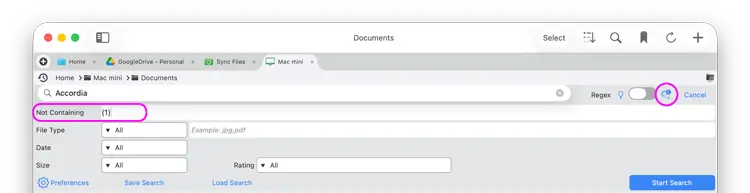
Not Containing
Exclude files from search results by filtering out specific text.
Tap the "+" icon and select "Not Containing", then enter the unwanted text in the input field.
Search Types
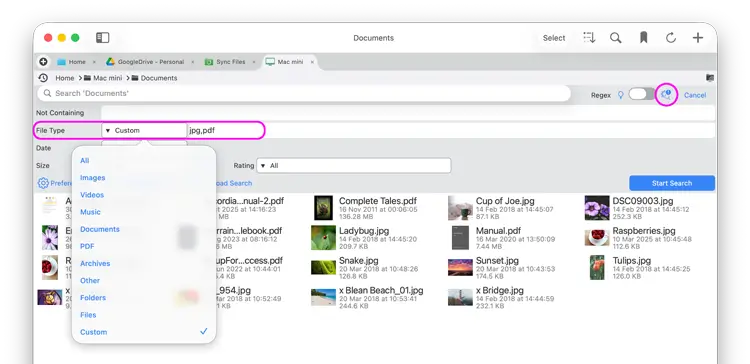
You can filter search results by file type groups to narrow down results.
Tap the "+" icon and select "File Type", then choose a preset or Custom.
Available presets include:
- Images
- Videos
- Music
- Documents
- Archives
- Other
- Folders
- Custom
Custom file types allow you to specify specific extensions such as nef, or multiple types such as nef, psd, pdf, txt.
Search Dates
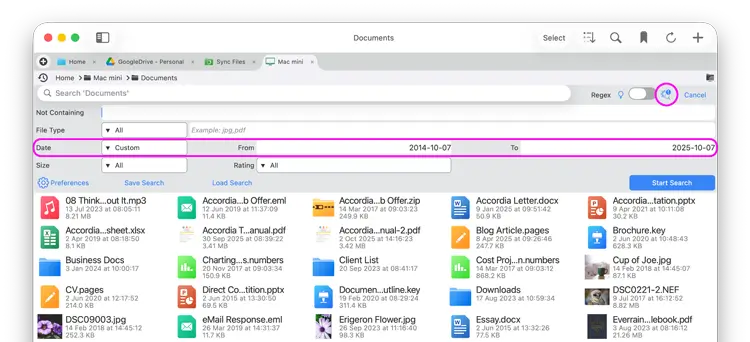
You can filter search results by preset time ranges or a custom date range.
Tap the "+" icon and select "Date" and choose a preset or Custom.
Available options include:
- Before (enter a date)
- After (enter a date)
- Last 24 hours
- Last week
- Last month
- Last year
- Custom
Custom allows you to define a date range by setting a from and to date.
Search Sizes
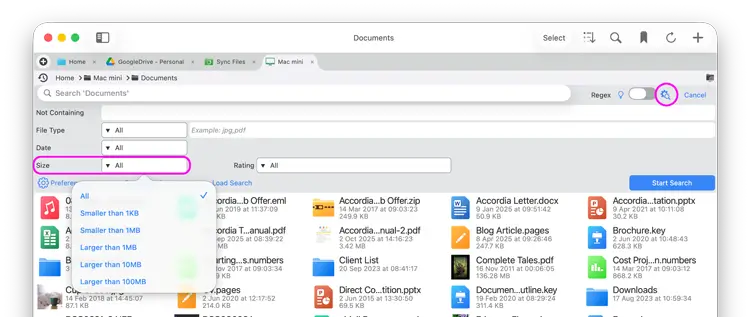
You can filter search results using preset file size ranges.
Tap the "+" icon and select "Size" and select a preset.
Available options include:
- Smaller than 1 KB
- Smaller than 1 MB
- Larger than 1 MB
- Larger than 10 MB
- Larger than 100 MB
Search XMP Ratings
You can filter search results using XMP rating presets on macOS.
Tap the "+" icon and select "Rating" then select a preset.
Available options include:
- All
- Rejected
- Not Rejected
- 0–5 Stars
- One or more stars

Save Searches
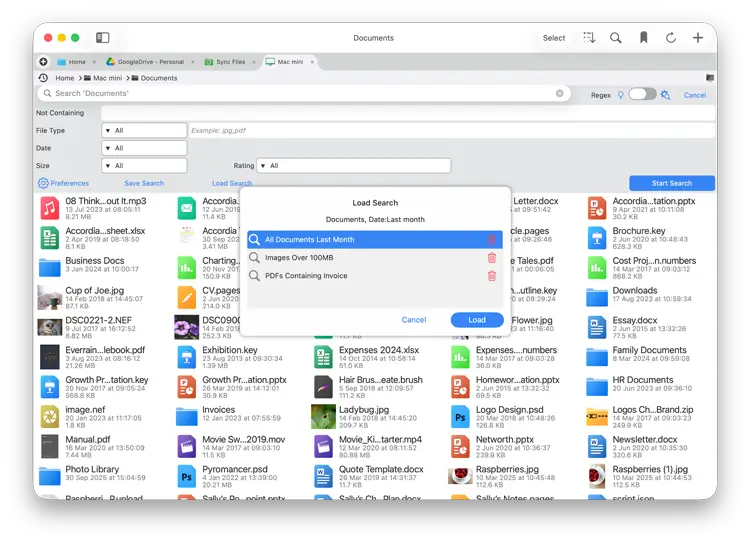
You can save searches that you use regularly for quick access later.
Set your search parameters. Then click Save Search, enter a name, and click Save.
Load Searches
To load a previously saved search:
Select Load Search.
Choose a search from the list, then click Load.
Once loaded, run the search by clicking Search Folders.
Regex Search
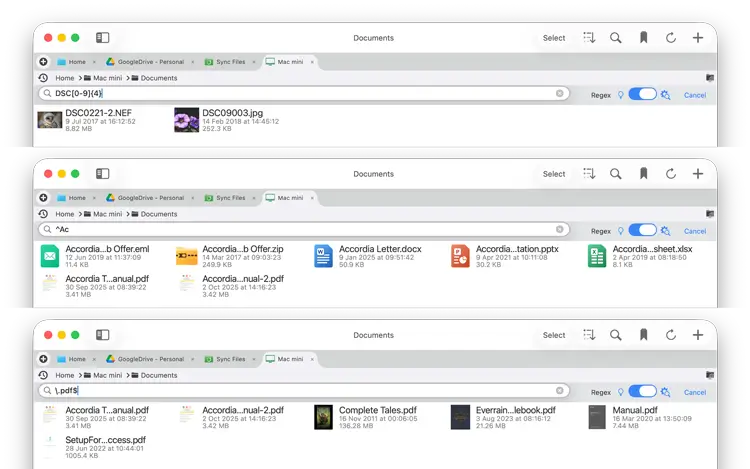
Use regular expressions (regex) to search for specific patterns rather than a set of words. You can match files that begin or end with your search parameter.
A search like this "[0-9]{4}" will return files that have a 4 numbers together in the filename.
Regex examples:
- [bc]at Match the characters 'b or c' and charcters 'at' for example 'bat' or 'cat'
- [^bc]at When using a ^ inside brackets it means not including so this example would match 'pat', but not 'bat' or 'cat'
- [0-9]{4} A group of 4 numbers, change the number in the curly brackets to change how many numbers.
- [a-z]{4} A group of 4 characters, change the number in the curly brackets to change how many characters.
- b.t Search for the character 'b' the dot equals a single character then 't' so would return 'bat' or 'bot'. To return 'beet' you would use b..t
- ^dog the ^ means files starting with so "dog park" but not "bath dog".
- \.pdf$ the \ means files ending with so "pdf" the $ means that this must be the end of the filename. Otherwise 'doc.pdf.txt' would match.
- (cat|dog) Matches either word
FileBrowser isn't limited to just these examples. You can use the full list of regex searches.
Searches are not case sensitive.