User Guide Full Index
 Getting Started
Connect to...
Getting Started
Connect to...
 Navigation
File Listing Options
Navigation
File Listing Options
 Selecting and Copying Files
- File Selection Mode
- Selecting Images in the Image Viewer
- Copying Files
- Drag and Drop
- AirDrop Files
- Share Files
- eMail Files
 Viewing Documents
Annotate/Markup
Merge PDFs
Viewing Documents
Annotate/Markup
Merge PDFs
 Bulk Rename Tools
- Bulk Rename - Add text to filenames
- Bulk Rename - Find and Replace
- Bulk Rename - Add Indexes / Counter
- Bulk Rename - Rename with Dates
- Bulk Rename - Rename using EXIF Data
 Search
 Working with Images
- Rotate Images
- Convert Images
- Create Contact Sheets
- Rate Photos with XMP
- Remove GPS from Photos
- Edit IPTC Properties on Photos
- Slideshows
 Playing Movies
 Playing Music
 Working with Finder
 WebDAV Server
 Sync and Backup
 Custom Tasks
- Create Custom Tasks
- Monitor a Folder for a Keyword and Download Hourly
- Download PDFs from the Last 7 Days
- Trim PDF Pages
- Change IPTC Properties on Images in Bulk
- Rotate Images in Bulk
- Automated Backup of Video Files from a Chosen Folder
- Automate Backup and Deletion of Files Older than a Chosen Date
- Remove GPS from Multiple Photos
- Convert Images in Bulk
 Advanced
Using Find and Replace in FileBrowser Pro for Mac
This guide explains how to use Find and Replace in FileBrowser Pro for Mac to quickly rename files by replacing text across multiple filenames in bulk.
Easily find and replace text in filenames for the currently selected files.
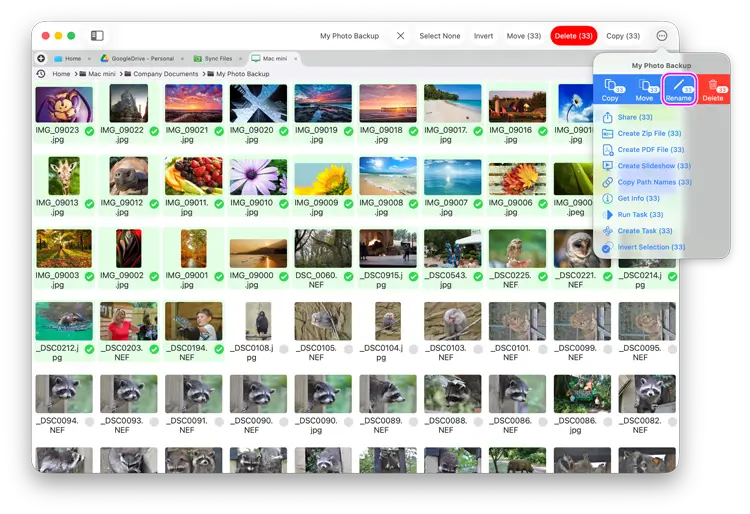
Select the files you want to rename and click the toolbar actions icon, then select "Rename (x)" from the menu.
Select the "Replace" tab.
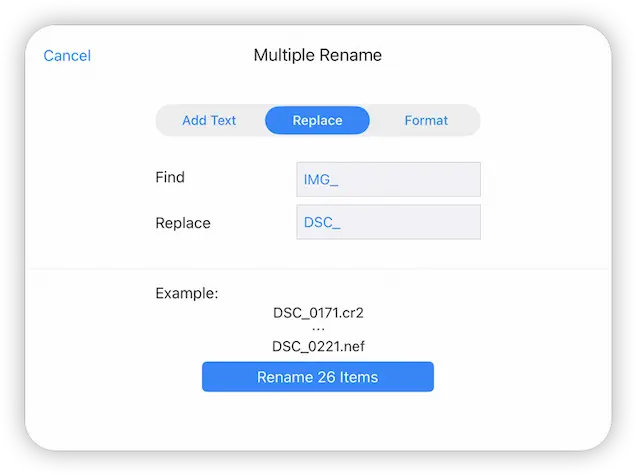
Use the Find and Replace inputs to change your filename, for example:
- Find: IMG_
- Replace: DSC_
You will see an example of the changes you are about to make before you click the "Rename X Items" button.