User Guide Full Index
 Getting Started
Connect to...
Getting Started
Connect to...
 Navigation
File Listing Options
Navigation
File Listing Options
 Selecting and Copying Files
- File Selection Mode
- Selecting Images in the Image Viewer
- Copying Files
- Drag and Drop
- AirDrop Files
- Share Files
- eMail Files
 Viewing Documents
Annotate/Markup
Merge PDFs
Viewing Documents
Annotate/Markup
Merge PDFs
 Bulk Rename Tools
- Bulk Rename - Add text to filenames
- Bulk Rename - Find and Replace
- Bulk Rename - Add Indexes / Counter
- Bulk Rename - Rename with Dates
- Bulk Rename - Rename using EXIF Data
 Search
 Working with Images
- Rotate Images
- Convert Images
- Create Contact Sheets
- Rate Photos with XMP
- Remove GPS from Photos
- Edit IPTC Properties on Photos
- Slideshows
 Playing Movies
 Playing Music
 Working with Finder
 WebDAV Server
 Sync and Backup
 Custom Tasks
- Create Custom Tasks
- Monitor a Folder for a Keyword and Download Hourly
- Download PDFs from the Last 7 Days
- Trim PDF Pages
- Change IPTC Properties on Images in Bulk
- Rotate Images in Bulk
- Automated Backup of Video Files from a Chosen Folder
- Automate Backup and Deletion of Files Older than a Chosen Date
- Remove GPS from Multiple Photos
- Convert Images in Bulk
 Advanced
Navigating Files in FileBrowser Pro for Mac
This guide explains how to navigate files and folders in FileBrowser Pro for Mac using tabs and breadcrumb navigation to move between locations quickly and efficiently.
Tabs
Create a New Tab
Click the "+" button on the far left of the Tab bar to open a new Tab.
Re-arrange Tabs
Click and hold a Tab then drag it left or right to re-position it. You can also drag a tab to the far left or right to open a second instance of FileBrowser Pro for Mac.

Copy Files Between Tabs
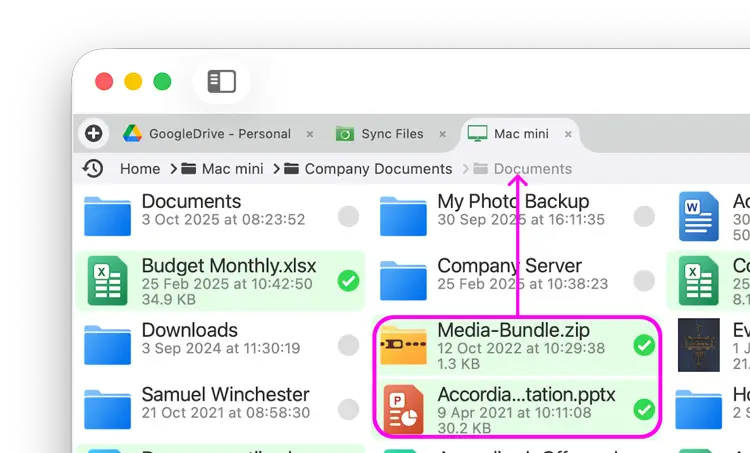
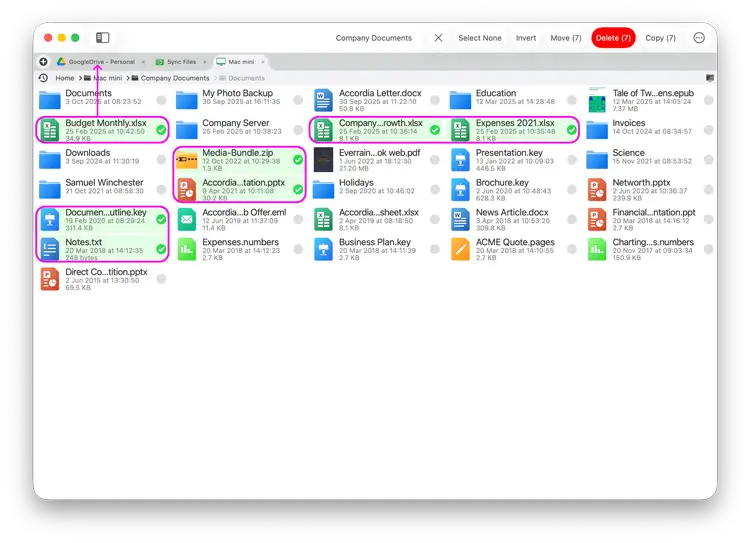
Drag a single or multi file selection into an existing tab, and drop them into that folder or drag them onto the breadcrumb bar and wait for the view to navigate then drop the file there instead.
Note: Dragging files to somewhere on the same location will move the files. Dragging files to another location will copy the files.
Tip: You can change the tabs from using folder names to just the location name. Under "Preferences -> Tab Name from Folder".
Breadcrumb
FileBrowser Pro for Mac's Breadcrumb bar updates as you navigate into folders displaying each nested folder, clicking any folder name in the bar will navigate back to that folder.
When navigating back up the folders towards the root, the previous folders you navigated to are still displayed but greyed out you can click these to navigate back to that folder.

Tip: You can drag files or folders onto the breadcrumb bar to quickly navigate to a folder and copy the files into the chosen folder.